Demos Solutions Platform Controls Security Pricing StandardsCompare approachesCustomer accessRequest a demo
Product demos

See what your team could do with Aegis.

Choose a task, see the result and inspect the steps behind it. Start with the 55-second team conversation, or choose the example closest to your work. All examples use fictional company data.

Silent recordings with captions and text stories. On a phone, read the story or use fullscreen to inspect the application.

Team collaboration and supporting files
Work together in a workspace

Bring your agent’s findings into the team conversation.

Work through a question with your agent. Share a checked summary with colleagues, then agree who follows up.

  1. Work through the questionAsk your agent to check the facts you supply. Read its findings.
  2. Choose what to shareCheck the summary and choose a topic. Post when you’re ready.
  3. Agree the next stepDiscuss what is missing and record who will follow up.
Silent demo · captions includedA shared summary. A clear next step. · 55 seconds
Fictional Finance example using supplied invoice facts. Sofia and Marcus record follow-up; no payment is approved.

For a closer look, use the video’s fullscreen control or read the story.

Read the story and demo details
  1. An invoice needs a closer look. A workspace review using supplied facts.
  2. Sofia works through the findings with her Accounts Payable agent.
  3. She reviews a summary before sharing it with Finance.
  4. She posts to the chosen invoice topic. Her full private transcript stays out.
  5. Marcus reads the shared contribution from his own account.
  6. He asks for the missing documents before making a payment decision.
  7. The team records the next step. This is not payment approval.

Fictional organisation, people and invoice facts. Recorded in a local development environment; an automated operator uses Sofia’s and Marcus’s accounts. Edits shorten navigation and waiting. This example shows discussion and follow-up, not invoice approval or payment. The invoice facts are supplied in the conversation; no document upload or connected-system lookup is shown.

Download captions (VTT) · Download subtitles (SRT) · Download transcript

Supporting files · fictional example

Keep the receiving record with the invoice work.

Avery attaches a receiving record to an existing invoice task. Daniel finds it in the same workspace and downloads the document from his own account.

This separate example uses administrators with workspace membership and approved clearance. Access to a team discussion alone does not grant access to this file-management page.

Watch supporting files in a workspace · 49 seconds
Silent demo · captions includedKeep supporting files with the work · 49 seconds
Fictional example: an uploaded receiving record remains associated with its task and workspace.

Use fullscreen for a closer look, or read the story.

Read the story and demo details
  1. Keep receiving evidence with the invoice work. Northstar Operations is a fictional organisation.
  2. Avery and Daniel are assigned to this workspace. Both have the administrative access this page requires.
  3. Avery selects the existing invoice task and uploads a receiving record marked restricted.
  4. The supporting file appears with its type and classification. This is a manual upload, not an agent-generated output.
  5. Daniel opens the same workspace from his own account and downloads the same file.
  6. The file remains after reload. Downloaded bytes match. Availability does not establish that an agent used it.

The upload requires an existing task/request. Avery and Daniel have administrative page access, explicit workspace membership and approved restricted clearance. Their downloaded and supplied files match; reload confirms the association remains.

This is a manual upload after the earlier task, not an agent-generated result or proof that an agent read the file. The list may omit files above the viewer’s clearance. This is separate from Sofia and Marcus’s discussion above.

Fictional organisation, people and records. Captured in the local application on 28 September 2026, with an automated operator using the named accounts. Cuts shorten navigation and exclude sign-in. This recording does not establish production availability or mobile-app support.

Download captions (VTT) · Download subtitles (SRT) · Download transcript

Back to demo choices ↑

Setup: roles, owners and saved limits · 55 sec
Start with responsibility

One role. One owner. A connected agent.

Northstar’s Accounts Payable role belongs to Sofia Marchetti and reports to CFO Marcus Reid. Follow its agent, procedure and saved controls.

A role makes the responsibility clear before work begins. The following examples show how that setup connects to a task, a result and a human decision.

Silent demo · captions includedWho owns each assistant? · 55 seconds
The saved organization connects the owner, reporting line, instructions and separate AI spending limit. Four setup checks pass.
Read the transcript

A fictional company assigns Sofia an invoice-review assistant, shared instructions and limits.

Saved rules require review of payments; the film shows configuration checks.

Setup checks do not prove an invoice was processed, a payment blocked or a new assistant deployed.

Fictional demonstration. Edited recording; saved-record views are labelled.

  1. 00:00:00.000 — A fictional company assigns AI owners.
  2. 00:00:02.961 — Edited recording of the real workspace.
  3. 00:00:06.000 — Sofia handles supplier bills. She reports to Marcus, head of Finance.
  4. 00:00:14.000 — Give Sofia's AI assistant the invoice-review instructions.
  5. 00:00:19.000 — Saved instructions require review above $1,000.
  6. 00:00:22.398 — They set a maximum amount of $5,000.
  7. 00:00:25.000 — The assistant uses invoice text supplied.
  8. 00:00:28.952 — No extra data sources or tools are linked.
  9. 00:00:33.000 — The saved rules require payment review. They forbid bank-detail changes.
  10. 00:00:38.000 — Set a separate $10 limit to run AI.
  11. 00:00:43.000 — Check the setup.
  12. 00:00:44.600 — The check passes. No issues found in all four checks.
  13. 00:00:49.000 — Nine AI assistants are active. This is the saved list, not a preview.

Download captions (VTT) · Download subtitles (SRT) · Download transcript

Back to demo choices ↑

Cross-team work: compare a staffing plan · 72 sec
Two teams, one question

Bring Finance and Operations into the same decision.

A company lead asks the two agents to compare staffing options. Their answers come together for review, and a separate request corrects a percentage in the first draft.

Silent demo · captions includedFinance and Operations prepare a staffing draft · 72 seconds
Two worker tasks finish. A separate correction request produces a combined draft with the corrected 14.3% calculation.
Read the transcript

Avery asks Finance and Operations to examine supplied fictional staffing and cost figures.

The first percentage error, explicit correction request and resulting internal draft remain visible.

This is calculated from supplied figures, not measured savings. It shows neither spending nor human approval. One operator uses separate demonstration accounts.

Fictional demonstration. Edited recording; saved-record views are labelled.

  1. 00:00:00.000 — Avery, the company lead, asks Finance and Operations to help.
  2. 00:00:02.905 — Fictional staffing facts; separate accounts used by one operator.
  3. 00:00:06.000 — Both sides recorded permission to work.
  4. 00:00:11.132 — Saved records shown on a review page.
  5. 00:00:16.000 — The Operations assistant checks the plan.
  6. 00:00:23.000 — The Finance assistant checks the costs. These are the two helpers used.
  7. 00:00:31.000 — The first answer is saved for review. Its percentage needs a correction.
  8. 00:00:37.000 — A separate request asks for a correction.
  9. 00:00:40.727 — The original answer stays unchanged.
  10. 00:00:44.000 — The Finance assistant returns its checks.
  11. 00:00:50.000 — The Operations assistant returns its work. Both tasks finish.
  12. 00:00:56.000 — The combined answer corrects the calculation to 14.3%.
  13. 00:01:00.119 — This is a calculation on supplied figures, not measured savings.
  14. 00:01:05.000 — The corrected answer is saved as an internal draft.
  15. 00:01:08.051 — Two worker tasks finished; no spending or human approval is shown.

Download captions (VTT) · Download subtitles (SRT) · Download transcript

The figures are supplied assumptions for a fictional planning exercise. No spending or outside action takes place.

Back to demo choices ↑

Finance: review the submitted invoice · 60 sec
A named reviewer owns the decision

A held request reaches a named reviewer.

A submitted invoice reaches Marcus for review. It names the wrong buyer, so he rejects that same request and asks for a corrected invoice. The demo operator uses the fictional CFO account.

Silent demo · captions includedA reviewer rejects the wrong buyer document · 60 seconds
The same request is rejected and processing stops.
Read the transcript

A submitted document names Acme Corporation as buyer, while the reviewer works in Northstar.

Marcus enters the buyer-mismatch reason; the later saved state confirms the decision.

This is a document review, not a payment or mailbox-intake demonstration. Other requests visible in the background are separate cases.

Fictional demonstration. Screenshot walkthrough; saved-record views are labelled.

  1. 00:00:00.000 — One submitted document is read and held for review.
  2. 00:00:07.217 — The same document and run numbers follow it throughout.
  3. 00:00:15.000 — The document names Acme Corporation as the buyer.
  4. 00:00:21.934 — The reviewer works in Northstar.
  5. 00:00:26.462 — The buyer does not match.
  6. 00:00:30.000 — Marcus, the Finance reviewer, enters his rejection reason.
  7. 00:00:37.565 — The filled dialog precedes the saved decision shown next.
  8. 00:00:45.000 — The same request is now rejected. Processing stops.
  9. 00:00:52.650 — This is a document decision. No payment was made.

Download captions (VTT) · Download subtitles (SRT) · Download transcript

Earlier simulated limit check · recording download

A separate limit example. An earlier recording pairs a $100 invoice draft with a separately simulated $1,500 request held against a $1,000 review threshold. The reviewer rejects the held request. These are separate scenarios, and no payment occurs.

An invoice reaches its limit. The reviewer decides. · 40 seconds
The operator asks an assistant to review a $100 invoice. In a separate simulated finance check, a $1,500 request is held above the $1,000 limit. Using Marcus’s demonstration account as head of Finance, the operator rejects it. No payment occurs.

Download the original recording or read its transcript

The operator asks an assistant to review a $100 invoice. In a separate simulated finance check, a $1,500 request is held above the $1,000 limit. Using Marcus’s demonstration account as head of Finance, the operator rejects it. No payment occurs.

  1. 00:00:00 — The AI reviews a fictional invoice. Edited recording of a real test.
  2. 00:00:11 — The assistant writes an internal draft. It flags missing evidence for Marcus.
  3. 00:00:19 — Signed in as Marcus, head of Finance.
  4. 00:00:21 — Separate simulated payment check. $1,500 held: above $1,000 review limit.
  5. 00:00:27 — Marcus records why he will reject it. Purchase approval and evidence missing.
  6. 00:00:32 — Marcus rejects the held request. Decision saved. No payment was made.

Download captions (VTT)

Fictional demonstration accounts operated by an automated demo operator.

Download the original recording (embedded English remains).

See the complete document example and supported intake paths. The earlier simulated limit check is a separate example.

Back to demo choices ↑

Shared expertise: prepare and review a handover · 112 sec
Shared expertise at work

One handover format. Work your colleagues can reuse.

At a shift change, the next colleague needs to know what is waiting, what is cleared and who follows up. In this example, Daniel prepares a specialist with the team’s handover format. Avery uses the same specialist in a saved workflow, then sends its output to Daniel for review.

A shared method gives colleagues a consistent starting point for recurring work. The responsible reviewer still checks whether the result is useful and complete.

Actual result preview

The handover Daniel reviewed

Generated for Avery, saved unchanged to Knowledge, then approved as a fictional demonstration summary.

Handover reference

NS-OPS-0907

Dock status

  • Dock A: 12 pallets awaiting inspection.
  • Dock B: 7 pallets cleared.

Follow-up owner

Lena Ortiz

Boundaries

This is a fictional demonstration summary and no inspection completion is confirmed.

Exact wording from Avery’s output, presented as readable text. Read the original Markdown.

Prepare the expertise once. Use it for the next handover.

  1. Prepare and shareDaniel saves the handover instructions, assigns them to a specialist and publishes that specialist to the intended organisational unit.
  2. Reuse and runAvery selects the same specialist for a three-step pipeline: supplied facts, specialist work, output. Each run still needs the current dock facts.
  3. Save and reviewAvery manually saves the generated Markdown to Knowledge. Daniel opens that same document, checks it and records his approval.

Both colleagues run the same pipeline. Their answers use the same four headings, with different wording. That shows a shared format in these two runs; the content still needs checking.

Silent demo · captions includedShare a method, run it and review the result · 112 seconds
Both pipeline runs complete and use the shared four-section format. Avery saves one answer unchanged; Daniel checks and approves that handover. This approves the summary, not an inspection or payment.
Read the transcript

Daniel prepares a shared Operations specialist and four-section instructions; both accounts supply the same dock facts.

Daniel opens that saved document and approves the summary after checking facts, owner, format and demonstration scope.

Both accounts are administrators and the role permissions were prepared first. This does not establish ordinary-member adoption or inspection completion. Preview checks do not call the model.

Fictional demonstration. Screenshot walkthrough; saved-record views are labelled.

  1. 00:00:00.000 — Actual-result preview: the reviewed dock handover.
  2. 00:00:04.082 — For the colleague handling inspection follow-up.
  3. 00:00:08.000 — Harness groups the specialist’s instructions and resources.
  4. 00:00:11.688 — Instructions are assigned; reference
  5. 00:00:13.938 — material is available to look up.
  6. 00:00:16.000 — Daniel saves shared instructions for the handover format.
  7. 00:00:20.222 — Four headings; exact facts; no invented completion.
  8. 00:00:24.000 — Daniel shares the specialist with Northstar’s top-level unit.
  9. 00:00:28.171 — Saved API record view. Both accounts are administrators.
  10. 00:00:32.000 — Avery selects that same shared specialist.
  11. 00:00:35.429 — Its Operations role and permissions were prepared first.
  12. 00:00:40.000 — Check that the handover instructions are assigned.
  13. 00:00:43.922 — This setup check does not ask the AI to do the work.
  14. 00:00:48.000 — Avery saves the three-step pipeline with that specialist.
  15. 00:00:52.145 — Supplied dock facts → Operations handover → Markdown.
  16. 00:00:56.000 — Both accounts supply the same dock facts to the pipeline.
  17. 00:01:00.071 — The required format comes from the shared instructions.
  18. 00:01:04.000 — Avery’s actual run completes all three steps.
  19. 00:01:07.529 — The saved run record confirms the instructions were used.
  20. 00:01:12.000 — Daniel also runs the same pipeline with the same setup.
  21. 00:01:16.074 — Both real answers use four headings; wording differs.
  22. 00:01:20.000 — Avery manually saves the exact output to Knowledge.
  23. 00:01:23.886 — The saved text is unchanged from the generated answer.
  24. 00:01:28.000 — Daniel opens that same saved document for review.
  25. 00:01:31.664 — He checks the quantities, owner, format and demo boundary.
  26. 00:01:36.000 — Daniel records his assessment in the native review dialog.
  27. 00:01:40.070 — This approves the summary, not an inspection or payment.
  28. 00:01:44.000 — The same document is approved with Daniel as reviewer.
  29. 00:01:47.823 — The shared method produced a document a colleague reviewed.

Download captions (VTT) · Download subtitles (SRT) · Download transcript

Inspect the saved document and both outputs
the saved handover document in Aegis
Avery opens the unchanged generated handover saved in Knowledge. This screenshot precedes Daniel’s review; the walkthrough follows it through approval.

Avery’s actual output · Daniel’s actual output · The assigned format

The shared preparation is the specialist, its assigned instructions and the pipeline. This example uses two accounts with organisation-wide build administration. Sharing configuration does not grant access to someone else’s source records, conversations or results. Saving to Knowledge is a manual step after the pipeline; the example does not generate a Word or PDF file.

A single specialist can also answer a request directly. A pipeline is useful when you want to connect stages. See how specialists, shared instructions and pipelines fit together →

Explore a recurring task with your team

Bring one recurring team task or report, the format you use and the person who reviews it.

Earlier work-session and invoice examples

These earlier recordings show separate tasks. Lena’s direct conversation below is not Avery’s pipeline run or Daniel’s reviewed document.

Lena’s fictional Work session: Operations Planner Agent returns a dock summary, with a follow-up field below.
Real application session using a fictional employee account and supplied dock information. The answer is finished; the conversation remains open. No operating record was changed and no artifact was saved.
About this captured result

The agent summarizes facts supplied in the request. It does not call tools or perform the inspection. The on-screen cost includes separate request preparation; it is not the cost of this answer alone. This is one agent’s answer, not the separate two-team staffing example.

How a larger objective can move through the work

Follow the objective through to an outcome.

  1. Clarify and plan Gather missing information and agree the steps.
  2. Assign the work Use role responsibilities, specialists and shared work queues.
  3. Inspect the output Review findings, supporting artifacts and outstanding questions.
  4. Decide and follow up Accept, request changes or return the work with a reason.
Who owns each step, and what the recordings show

This is a guide through separate recorded examples. It is not one continuous task. The accounts are fictional and the recorded account actions were performed by an automated demo operator.

  1. Set responsibility — organization builder and role owner. In the Northstar organization tour, Sofia owns the supplier-invoice role, reports to Marcus and has a linked role agent with saved limits.
  2. Equip the agent — builder. The customization recording shows reusable instructions and a specialist for a defined job. A role agent serves an accountable business role; a specialist supplies a particular capability. The later procedure example shows saved headings appearing in an answer.
  3. Clarify and plan — requester and role agent. The invoice conversation asks for missing information and a decision on the proposed analysis. Check which steps depend on earlier results before work starts. A separate completed three-step workflow on Platform shows input, agent work and output in sequence.
  4. Delegate and combine — coordinating agent and workers. In the staffing example, Finance and Operations return their own analyses and the lead combines them. The requester supplies a correction in a separate request. The figures are supplied assumptions, not measured savings.
  5. Inspect the output — requester or designated reviewer. Compare findings with the submitted information. The document-to-decision walkthrough follows one invoice through reading and review. Older extraction screenshots and the earlier agent conversation remain separate examples.
  6. Decide and follow up — named review account. The CFO-account walkthrough records a rejection of that same submitted invoice because it names the wrong buyer. No payment occurs. The staffing answer and its requested correction are separate work.

Each example shows its own observed steps and outcome. The document walkthrough joins submission, reading and owner decision; cross-team delegation is demonstrated separately in the staffing example.

Workflow overview. The recordings below demonstrate selected stages in separate scenarios, not one uninterrupted multi-agent execution.

Explore agent coordination →
Earlier invoice work surfaces · recording download

Earlier invoice work surfaces. Inspect the draft, extraction and exception screenshots in this section. They show separate tasks; the linked leadership notice is a notification, not approval of the invoice.

A day of invoice review · 30 seconds
Draft a review request, compare invoice details with the document, and inspect an existing problem case and a separately linked management notice. These are separate demonstration steps; the draft is not submitted.

Download the original recording or read its transcript

Draft a review request, compare invoice details with the document, and inspect an existing problem case and a separately linked management notice. These are separate demonstration steps; the draft is not submitted.

  1. 00:00:00 — The Finance team drafts a task to review today's invoices.
  2. 00:00:06 — Aegis shows the details it found beside the original invoice.
  3. 00:00:13 — An existing issue notes a missing purchase order for the payments team.
  4. 00:00:20 — A linked note for leaders shows supplier, amount, hold and next step.
  5. 00:00:27 — Staff see the details. Leaders see the bigger picture.

Download captions (VTT)

Download the original recording (embedded English remains).

Back to demo choices ↑

Builder: test and improve an agent · 112 sec
Build with Aegis

Turn your team’s procedure into a specialist.

You know the job and what a good result looks like. Give an agent your procedure, try it on sample work and refine its instructions as your needs change.

Watch the builder at work · 1 min 52 sec Explore more examples →

For process owners and power usersDefine the procedure, the expected format and what needs a person’s judgment.

For technical buildersConfigure models, tools and access. Check how the agent works and make the setup reusable.

Test an agent, refine its instructions, try again.

The team wants its handovers to flag missing deadlines. A builder adds that instruction to an existing specialist and tests the same facts again. The answer now says “Deadline: not supplied.”

Silent demo · captions includedMake missing timing explicit · 112 seconds
The new answer flags the missing deadline: “Deadline: not supplied.”
Read the transcript

The Operations handover specialist receives the same dock facts before and after a saved missing-deadline instruction.

The first response satisfied its original requirement. A new criterion motivates the instruction edit; Daniel later opens the same revised shared setup.

Only the saved job instructions change between tests. Both demonstration accounts are administrators. This one input does not establish broad reliability or model retraining.

Fictional demonstration. Screenshot walkthrough; saved-record views are labelled.

  1. 00:00:00.000 — A clearer handover: make missing timing explicit.
  2. 00:00:03.920 — Actual before and after responses, shown unchanged.
  3. 00:00:08.000 — Start with the saved Operations handover specialist.
  4. 00:00:12.160 — Operations Planner remains the accountable role.
  5. 00:00:16.000 — The job: turn supplied dock facts into a handover.
  6. 00:00:20.348 — This test uses the configured Azure model.
  7. 00:00:24.000 — Shared instructions set the four-section format.
  8. 00:00:27.728 — This example needs no reference lookup or outside tool.
  9. 00:00:32.000 — Check the instructions the specialist will receive.
  10. 00:00:36.121 — This preview does not ask the AI to do the work.
  11. 00:00:40.000 — Test the actual supplied facts in the native builder.
  12. 00:00:44.077 — Twelve pallets await inspection; seven are cleared.
  13. 00:00:48.000 — The first test returned the requested handover.
  14. 00:00:51.917 — The original answer and run record are preserved.
  15. 00:00:56.000 — The first result met the original requirement.
  16. 00:00:59.874 — New criterion: flag a missing follow-up deadline.
  17. 00:01:04.000 — Add the missing-deadline rule to the job instructions.
  18. 00:01:08.075 — Keep the four headings and supplied facts unchanged.
  19. 00:01:12.000 — Save the change in the real builder.
  20. 00:01:14.851 — The model, shared instructions, placement and role stay the same.
  21. 00:01:20.000 — Rerun exactly the same supplied facts.
  22. 00:01:23.663 — Only the saved job instructions have changed.
  23. 00:01:28.000 — The new response says: Deadline: not supplied.
  24. 00:01:31.833 — The run used the shared instructions and no tools.
  25. 00:01:36.000 — Daniel opens the same revised, shared setup.
  26. 00:01:39.592 — Both demonstration accounts have administrator access.
  27. 00:01:44.000 — This shows one change working on the repeated input.
  28. 00:01:47.649 — Test supplied deadlines and other inputs before relying on it.

Download captions (VTT) · Download subtitles (SRT) · Download transcript

About this demonstration

This is an edited screenshot walkthrough of an existing specialist. The before-and-after comparison is a separate response viewer, not an Aegis comparison screen. Both answers are shown unchanged.

The preview inspects the assigned procedure (Context) without calling a model. Both native tests use that Context and no tools. Only the saved job instructions change; the model and assigned Context stay the same. Other inputs and operating settings need their own checks.

The final scene shows the original creator, an administrator, opening the same revised shared setup. Publication already existed. It does not demonstrate a new employee adopting the agent or a deployment. Both fictional accounts were operated by one person.

  1. Define the job

    Name the recurring task, the person responsible and the output you need. Keep the specialist focused on that task.

  2. Give it your expertise

    Write the procedure and assign reusable Context. Identify the knowledge it may use and the facts the requester must supply.

  3. Connect its tools

    Choose the operations it needs from your connected services. Check permissions and any required approval before use.

  4. Set how it can work

    Choose a supported model and runtime. Configure its operating limits and authority for the intended role.

  5. Test and inspect

    Try representative input. Compare the actual answer with the expected result and inspect which instructions and tools were used.

  6. Improve and share

    Review changes to the instructions, then check a later answer. Publish the specialist within the supported scope so another eligible builder can reuse it.

These decisions cover the wider builder workflow. Building and sharing follow your organisation’s permissions.

Earlier specialist setup · screens and recording download

Create the setup for a specialist. Save reusable instructions, assign them, preview the combined instructions, then create the specialist and save its planned steps. The preview does not run the agent; saving the plan does not prove it has completed.

Reusable invoice-review instructions in the setup screen

Earlier native setup screen. Instructions and plans are saved configuration, not evidence of a completed run.

From reusable instructions to saved plans · 90 seconds
Create reusable review instructions, check where they are assigned, preview the combined instructions, and save an assistant and its planned steps. A separate read-only example in the built-in testing screen returns the assistant list; it does not run the saved plan.
Download the original recording or read its transcript

Create reusable review instructions, check where they are assigned, preview the combined instructions, and save an assistant and its planned steps. A separate read-only example in the built-in testing screen returns the assistant list; it does not run the saved plan.

  1. 00:00:00 — Open the shared library of instructions that can be reused.
  2. 00:00:10 — Write invoice-review instructions and clear limits on payment actions.
  3. 00:00:20 — See which AI assistant is assigned these instructions.
  4. 00:00:30 — Preview the instructions sent to AI. No AI call is made or charged here.
  5. 00:00:40 — Create and save an AI assistant to review invoice evidence.
  6. 00:00:50 — Set its abilities and AI options. Set it to work under human supervision.
  7. 00:01:00 — Add the assistant to a saved five-step plan.
  8. 00:01:10 — Open the test panel and review the company's sample invoice choices.
  9. 00:01:20 — A separate test reads the assistant list and shows how long the response took.

Download captions (VTT)

Download the original recording (embedded English remains).

Short setup overview · recording download

Initial setup. The earlier example saves invoice-review instructions, previews the assignment and saves a plan. See the creation and setup steps. This is preparation, not a completed run.

Set up an assistant for invoice review · 30 seconds
Save reusable instructions and limits, preview the instructions the assistant will receive, and place the assistant into a saved sequence of planned steps. This short edit shows setup; it does not run those steps.

Download the original recording or read its transcript

Save reusable instructions and limits, preview the instructions the assistant will receive, and place the assistant into a saved sequence of planned steps. This short edit shows setup; it does not run those steps.

  1. 00:00:00 — Save instructions and clear limits that can be reused for invoice review.
  2. 00:00:10 — Preview the instructions sent to AI. This preview does not run the AI.
  3. 00:00:16 — Create an AI assistant with a clear invoice-review purpose.
  4. 00:00:22 — Save the assistant in a plan. This clip does not run the plan.

Download captions (VTT)

Download the original recording (embedded English remains).

Inspect a real specialist’s saved setup
the Northstar handover specialist setup
Actual specialist configuration: its job, model setting, organisational placement and supervised posture. This is setup; the Test button alone is not evidence of a successful run.

This is the same Operations specialist used in the refinement film and the separate shared handover demonstration. The optional invoice setup tour shows a different specialist.

More ways to put expertise to work

From one specialist to shared work.

The builder test checks one agent’s answer. A pipeline connects work in stages. These separate examples show how instructions are reused, work is shared and proposed changes are reviewed.

See the setup preview used for the handover specialist
the specialist’s assigned instructions preview
The preview resolves the assigned handover Context without calling a model. Withheld information is different from nothing assigned. Inspect a real execution to check what was used.

A specialist can answer directly. Add a pipeline when you want to connect stages, or explore agent-to-agent coordination for delegated work. Sharing a specialist does not grant access to someone else’s data. In the handover example, saving the output to Knowledge before review is manual.

What would you like an agent to handle?

Bring a procedure and a sample input. We can walk through the expected result, the tools it needs and where a person should review the work.

Discuss your use case Discuss technical requirements →

Back to demo choices ↑

Earlier finance example: an invoice recommendation · 45 sec
Invoice review · 45 seconds

From a question to a recommendation.

An accounts-payable operator asks how to handle an invoice exception. Watch Aegis ask for evidence, prepare a plan and return a recommendation.

Watch the earlier invoice recommendation · 45 sec
Silent demo · captions includedHold a supplier-invoice exception for follow-up · 45 seconds
The original answer explains the amount difference and recommends follow-up by a person.

Original fictional demonstration, ending on a held frame of the final answer.

Read the transcript

A person supplies a supplier-invoice problem and then the requested evidence.

Approval is for a review plan; no payment or payment approval occurs.

The ending uses the original answer and a held final frame; it is not a fresh run. This run’s action records were not cryptographically verified.

Fictional demonstration. Edited recording; saved-record views are labelled.

  1. 00:00:00.000 — A person asks Aegis to review a problem with a supplier invoice.
  2. 00:00:12.000 — Aegis asks for missing evidence before suggesting a review plan.
  3. 00:00:22.000 — The person approves a review plan. This does not approve a payment.
  4. 00:00:32.000 — The AI explains the amount difference
  5. 00:00:35.500 — and recommends follow-up by a person.
  6. 00:00:39.000 — Original final answer.
  7. 00:00:40.600 — The decision stays with a person.
  8. 00:00:42.840 — No payment or payment approval occurred.

Download captions (VTT) · Download subtitles (SRT) · Download transcript
Demo limitation: the execution screen reports that this run’s action records were not cryptographically verified (checked for authenticity).

Back to demo choices ↑

Earlier finance evidence: invoice and exception
Inspect the source

See the evidence behind the finance example.

Compare the uploaded invoice, extracted fields and saved exception. The source captures belong to the earlier finance scenario, separate from Northstar.

Inspect the invoice and exception →

Back to demo choices ↑

Explore the application screens
Inside the application

Four places to work and manage the agents.

Most employees start in Work. Administrators and reviewers use Build, Observe and Govern according to their permissions. The screens below use fictional demo data.

Continue the work in one conversation

A named Operations agent returns the requested handover. Lena can read its answer and ask a follow-up. The session is still active; a returned answer is not the same as a completed objective.

Read about this work example →
Lena’s fictional Work session: Operations Planner Agent returns a dock summary, with a follow-up field below.
Real application session using a fictional employee account and supplied dock information. The answer is finished; the conversation remains open. No operating record was changed and no artifact was saved.
About this captured result

The agent summarizes facts supplied in the request. It does not call tools or perform the inspection. The on-screen cost includes separate request preparation; it is not the cost of this answer alone. This is one agent’s answer, not the separate two-team staffing example.

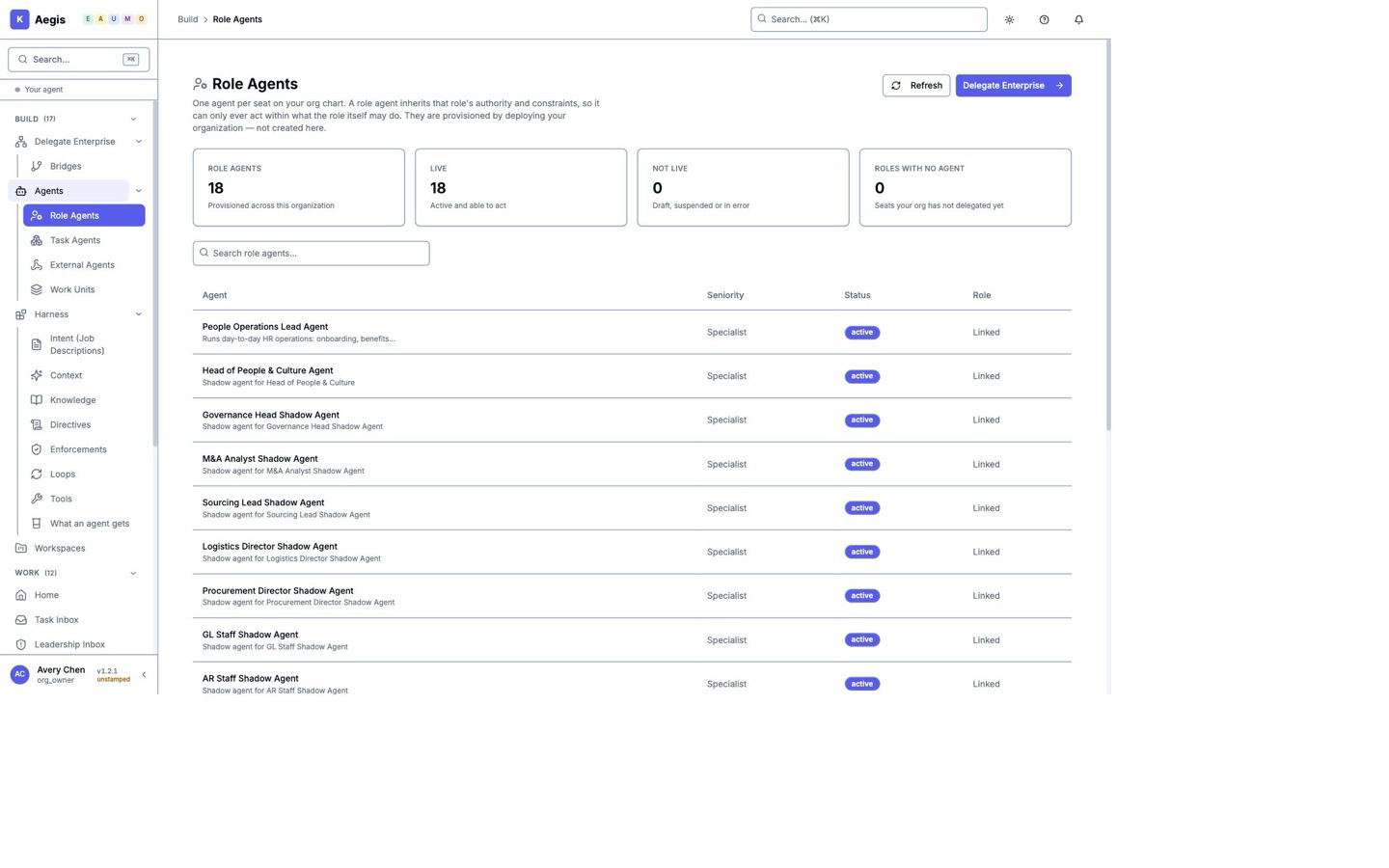
Set up roles and agents

Define departments, teams and roles, then review the agents linked to them. Each team needs an accountable person. Set up the organization on a desktop, where there’s room to work.

Product screenshot · Fictional demo organization

Check activity and control status

Inspect trust status and recent audit events. These are demonstration records; check the controls and assurance evidence for your own deployment.

Demo dashboard with trust status and recent sign-in audit events. These counters do not establish assurance or production performance.

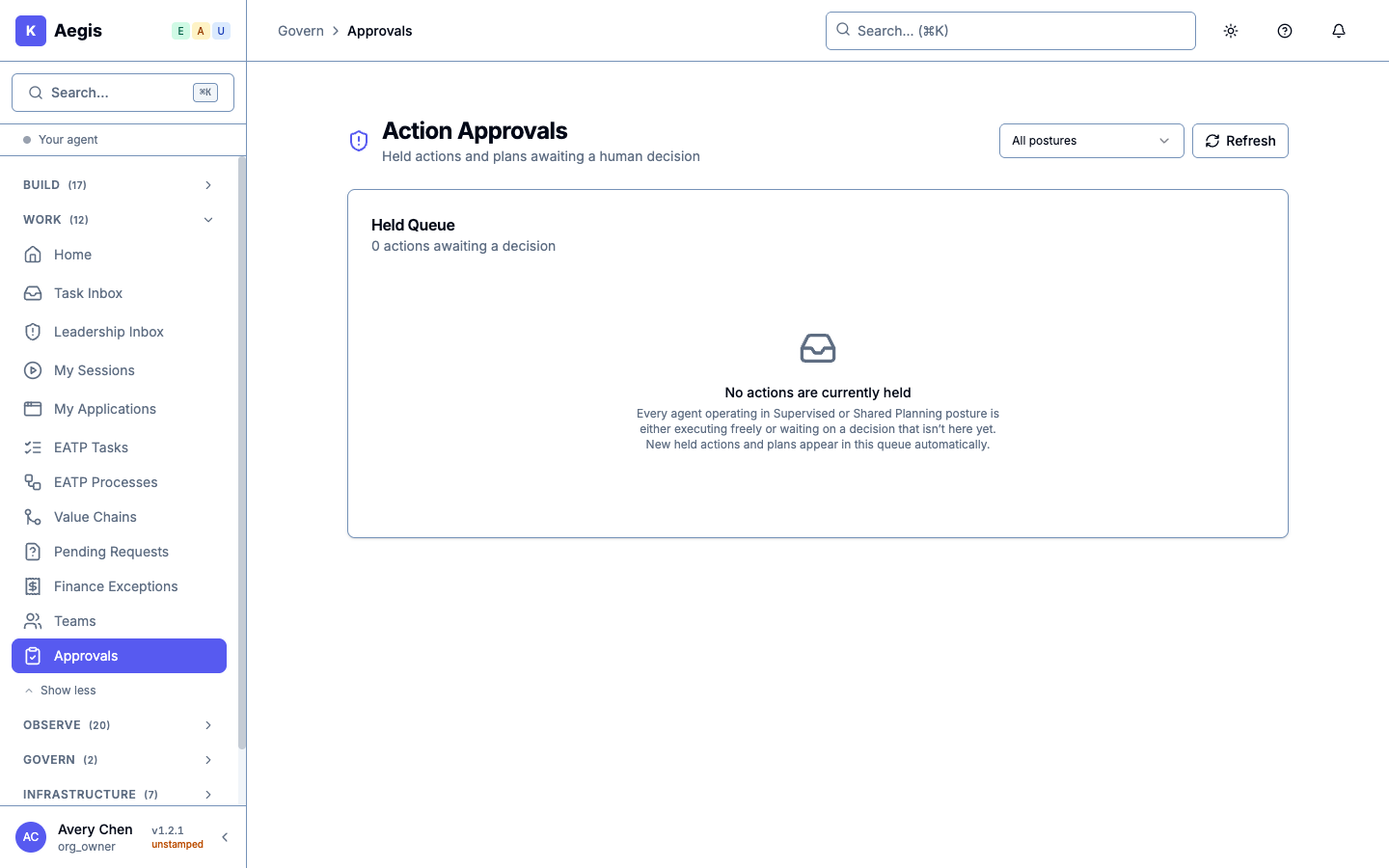
Review requests that need a person

Approval queues show work waiting for a decision. Separate controls let authorized people change limits or stop agent activity.

Review requests in Approvals. Demo queue shown empty.

Back to demo choices ↑

Bring a recurring task or report from your team.

In a 30-minute conversation, we’ll explore the task, the people responsible and the controls you would need.